Guides ·
A different VPN country for each app on Android
A normal VPN app on Android puts every app in one country. Switch to the United States for a streaming app and your news, maps and shopping apps move there too. Android runs one VPN app at a time, so a second VPN app for a second country disconnects the first.
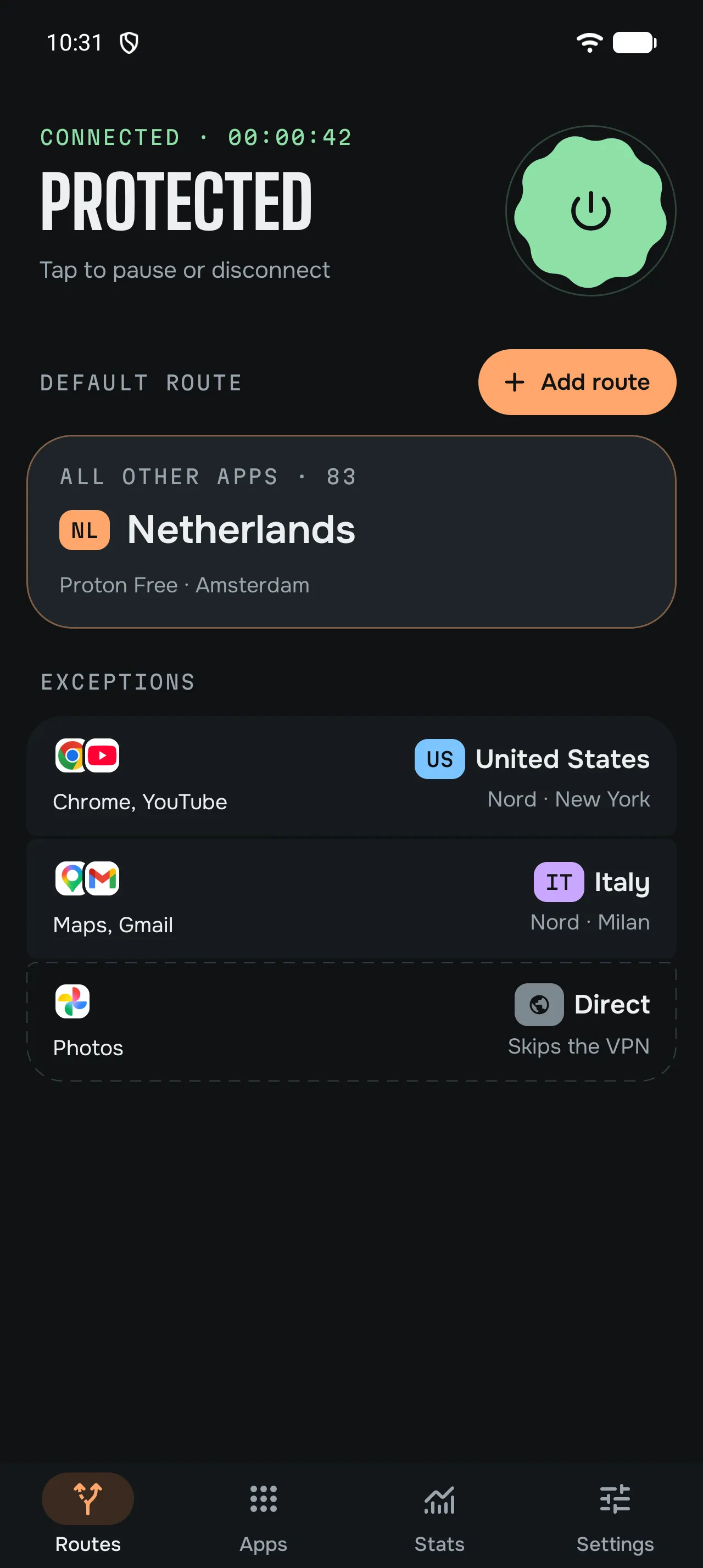
unbraid keeps several VPN exits open inside Android’s one VPN slot and lets you choose the exit for each app. A streaming app can leave from the United States while your maps leave from Italy and everything else from the Netherlands, at the same time. Banking apps can use your normal connection.
Multiple VPN locations at once
Each route in unbraid has one exit: a country, a city or one server from a provider, a server you imported, or a Tailscale exit node. Android tells unbraid which app opened each connection, and unbraid sends it out through that app’s route.
- The default route carries every app you haven’t assigned. Pick the country most apps should use.
- Other routes carry the apps you put on them, each from its own country.
- Direct apps use your normal connection, without a VPN exit.
The exits don’t have to come from one provider. A NordVPN exit in the United States can run next to a Mullvad exit in Italy and a Proton VPN Free exit in the Netherlands.
Set it up
- Add your provider. Go to Settings, Providers & servers, Add connection. Sign in, add a key, or import a WireGuard or OpenVPN file. The first run asks for one. The providers page says what each provider needs.
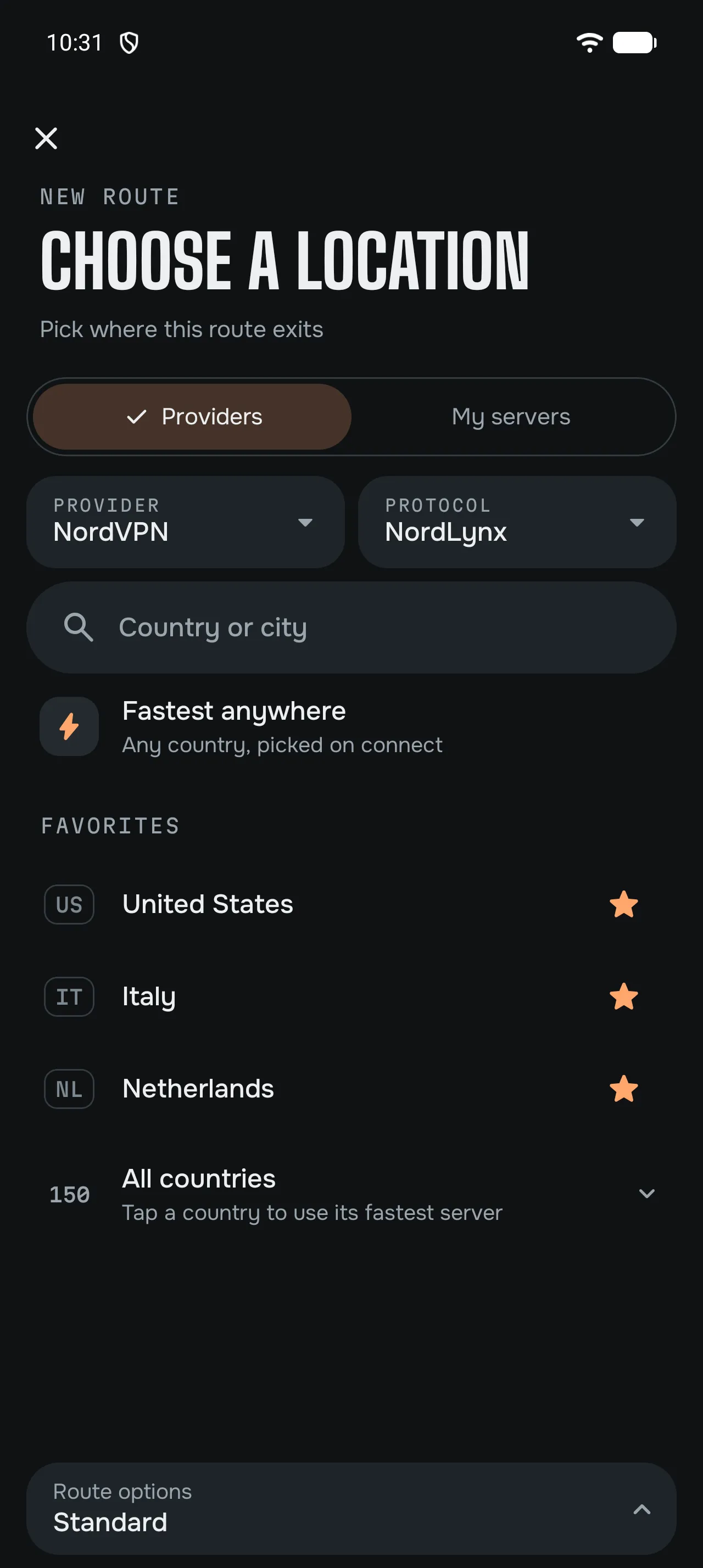
- Choose the default country. In Routes, open the default route and tap Change location. Pick a country, a city or a single server, or open My servers for a config you imported. If Direct is your default, tap +, then Route instead, pick the location, then open the new route and tap Make default.
- Add a route per country. Tap +, then Route and choose its location. Use the Provider menu to pick a location from another provider, or My servers for an imported config. Star the countries you use often to keep them under Favorites.
- Put apps on routes. Open Apps, tap an app and choose its route, or Direct. More gives an app a new exit of its own.
- Connect from Routes.
Apps shows each app’s route. Routes set to a country show its country code.
What the app sees
A routed app’s internet traffic leaves through its exit, and unbraid sends its public DNS lookups through that exit too, so websites normally see that exit’s country. Local names can use your network’s DNS, and Android’s Private DNS can override unbraid’s DNS. Some things don’t change with the VPN:
- Your phone’s location. Apps with location permission can still read GPS.
- Your account and SIM. An app may use the country of your account, your app store or your SIM card.
- Blocks on VPN addresses. Some services refuse known VPN servers. unbraid can’t change that. Try another server or provider for that route.
Limits
- Connections count. The default route is active while unbraid is connected. Other routes connect once apps are assigned to them, even if those apps are idle. Routes on the same server with the same settings and login share one connection.
- Provider limits. Mullvad counts unbraid as one device for all its routes. Other providers may limit how many connections run at once, and each exit is a connection.
- IPv4 only. Apps that go through unbraid can’t use IPv6.
- Android 13 or newer, on a 64-bit ARM phone. unbraid has no servers of its own: bring a supported provider account, including Proton VPN Free, or your own server.
The split tunneling guide covers DNS, failures and the rest of the setup.
Questions
Can two apps use the same country through different providers? Yes. Two routes can both be in the Netherlands, one through NordVPN and one through Mullvad. Apps tells them apart by provider.
Can one app use two countries? No. Each app goes through one route at a time. Change its route in Apps whenever you like.
Do I need two VPN subscriptions? No. One provider is enough for several countries. Add a second provider only if you want its servers too.